Business Value
Having the ability to annotate every trade with a tag gives a trader insight which type of trades are working for him and which don't. Annotation gives leverage also to coaches that can guide trader in his learning process. A tag example can be that trader loses the most on News events during ECB events (European Central Bank). This means his ability to monetise his trades during ECB events is low and there is a possibility for improvement.
Business Logic
This section will demonstrate through wireframes important functionalities. These functionalities are later broken down into requirements in the Functionalities section.
Trades
By tagging a trade you are essentially adding a label on a trade. This means that we first need to be able to display a list of trades. This is how the agenda should look like.
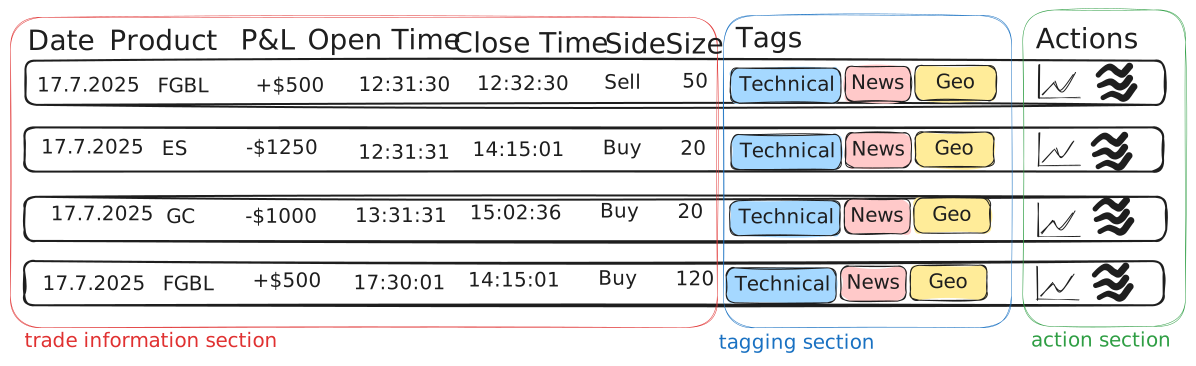
This trade list has three sections:
- trade information (red box) - contains information about the trade such as Date, Product, P&L (how much money was earned or lost), Open Time, Close Time, etc.
- tagging (blue box) - at a first level predefined tags to start tagging. Names on labels are only for inspiration, please find chapter Tag Names to find production names.
- action (green box) - actions one can do such as display trade detail or add description of a trade
Tags
Type Of Tags
You can add tags. You can remove tags.
Tagging will follow level dependent logic. Level dependent logic means that selection of of first level tag will dictate options for second level tags. What does it mean is displayed below.
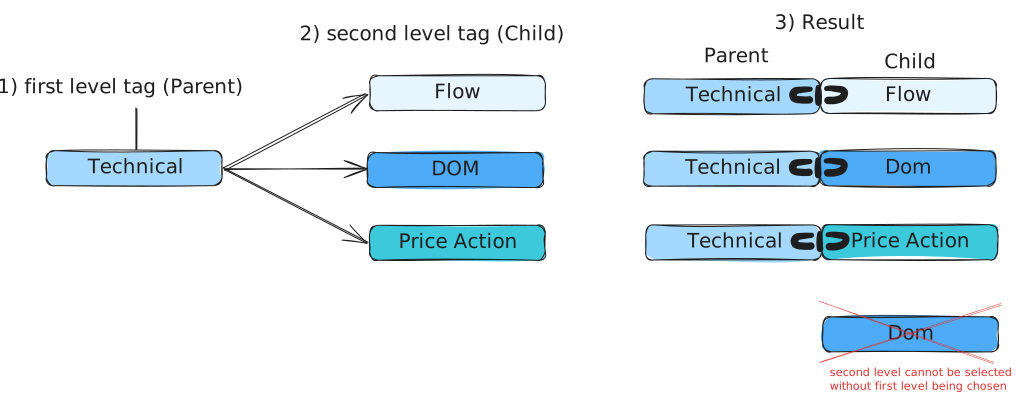
There are two types of tags:
- Fixed tags – predefined, follows level-dependent logic (parent-child logic)
- Free tags – user-defined
There are currently three levels in tags:
- 1st level - parent
- 2nd level - child
- 3rd level - grandchild
Selecting 1st level fixed tag is a single option - you can only select one tag at a 1st level.
Selecting 2nd level fixed tag is multi-optional:
- You don't have to select any 2nd level tag, and 1st level should be still able to save
- You can select one or many 2nd level fixed tags
User can add free tag only at 3rd level, after "Other" tag was selected on 2nd level.
Free Tags
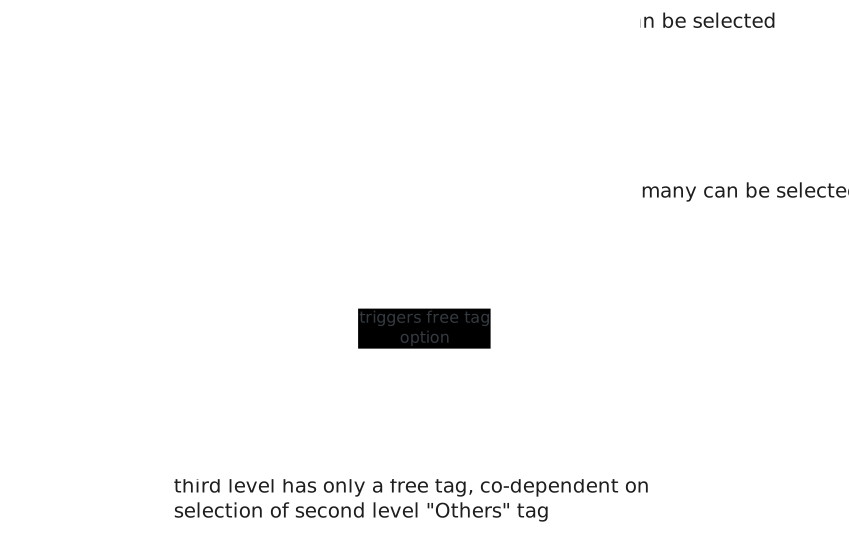
Free tags are always individual to particular trader and trader can type whatever he wants.
Backend must be able to store full tree of dependencies between first level, second level and third level tag.
Tag Flow
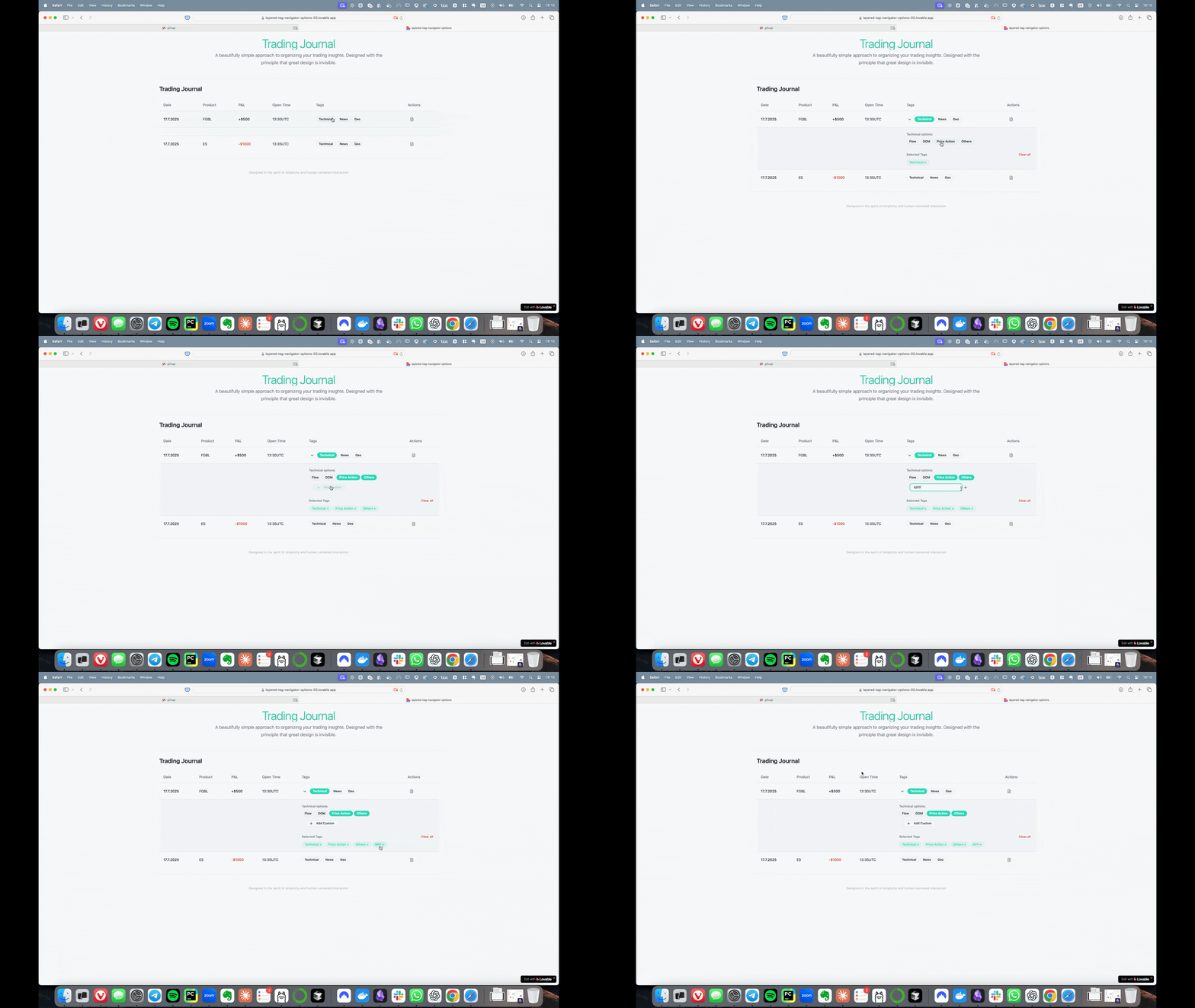
Given we have now established the difference between free tag and fixed tag, we can have a look at the live demonstration. This is a mock prototype for inspiration purposes only.
Fixed Tags
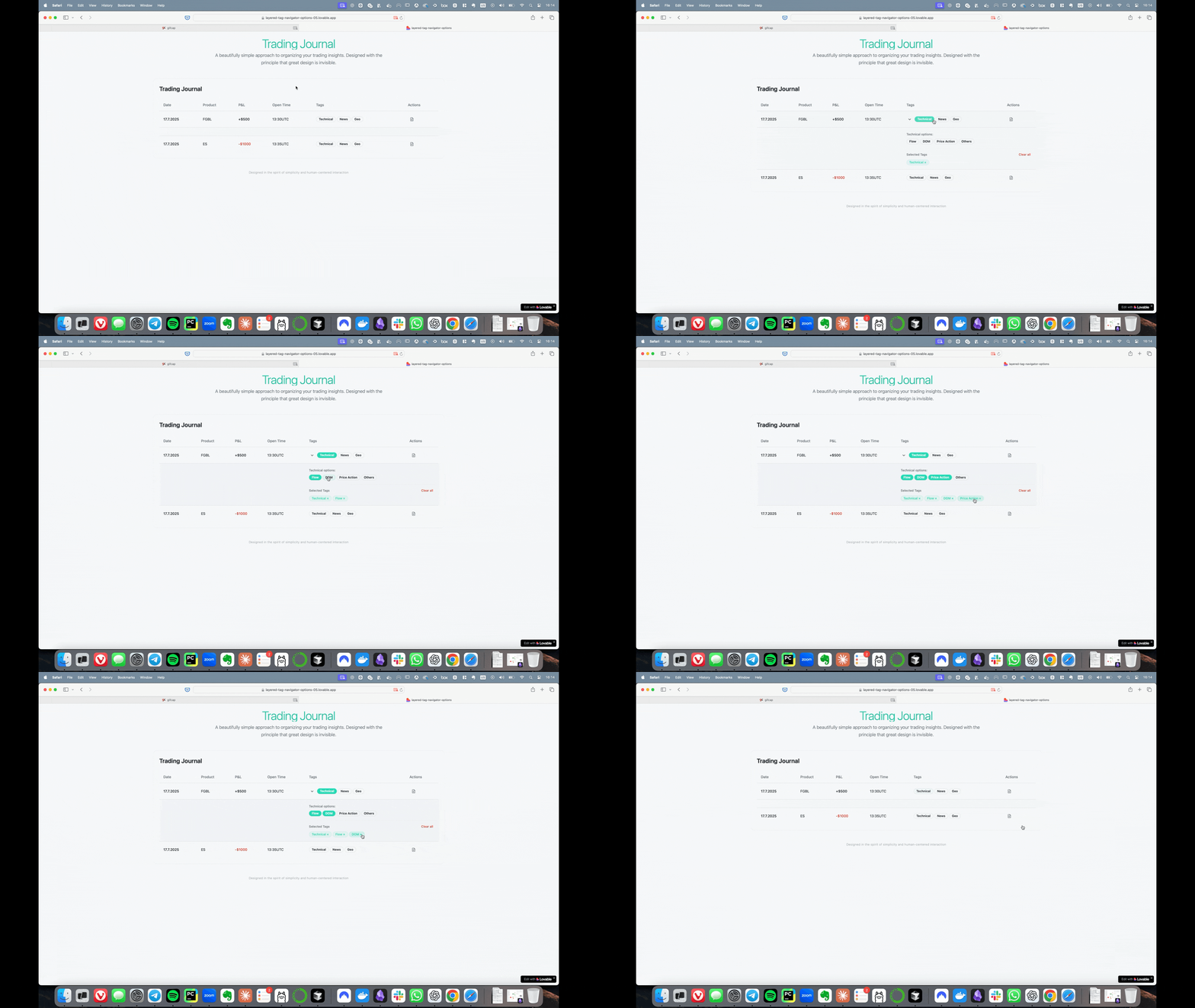 Visit this link for Clickable Mock Prototype.
Free Tags
InLine View
From the mock animation in Tag Flow chapter it is clear that we want to make tagging as user friendly as possible. We came to a conclusion that having tags directly in the row next to each trade is more efficient than having them hidden under some tagging button.
This InLine view has a requirement that it needs to expand when first level fixed tag is clicked.
Bulk Tagging
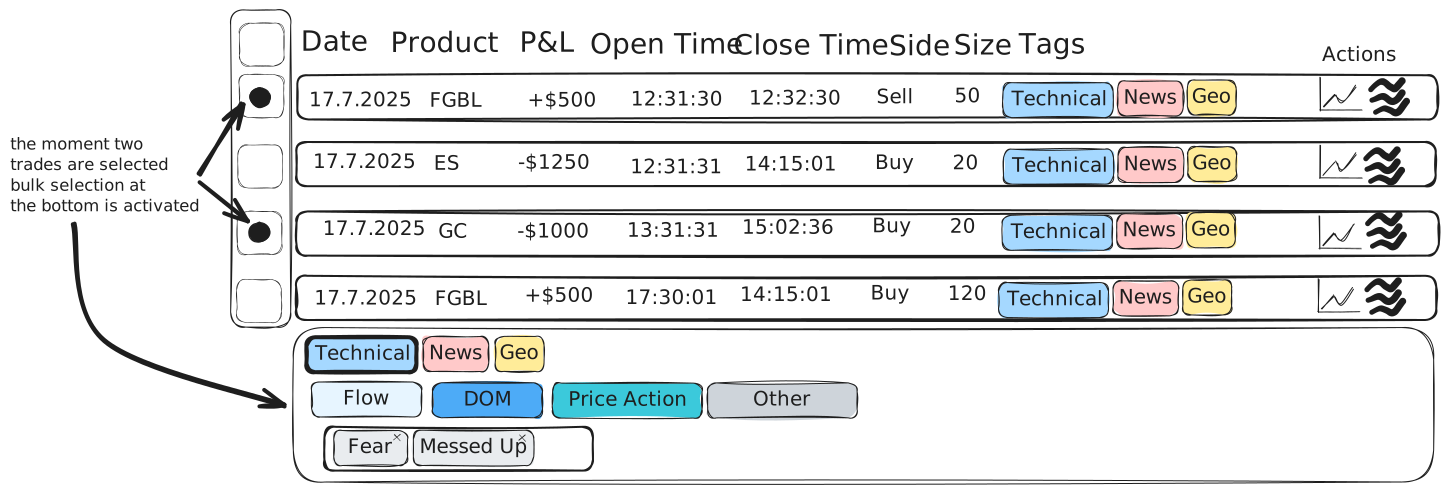
You can add a tag on a single or multiple (bulk tagging) trades. Trade can have unlimited amount of tags.
Date Filters And Search
Date Filters
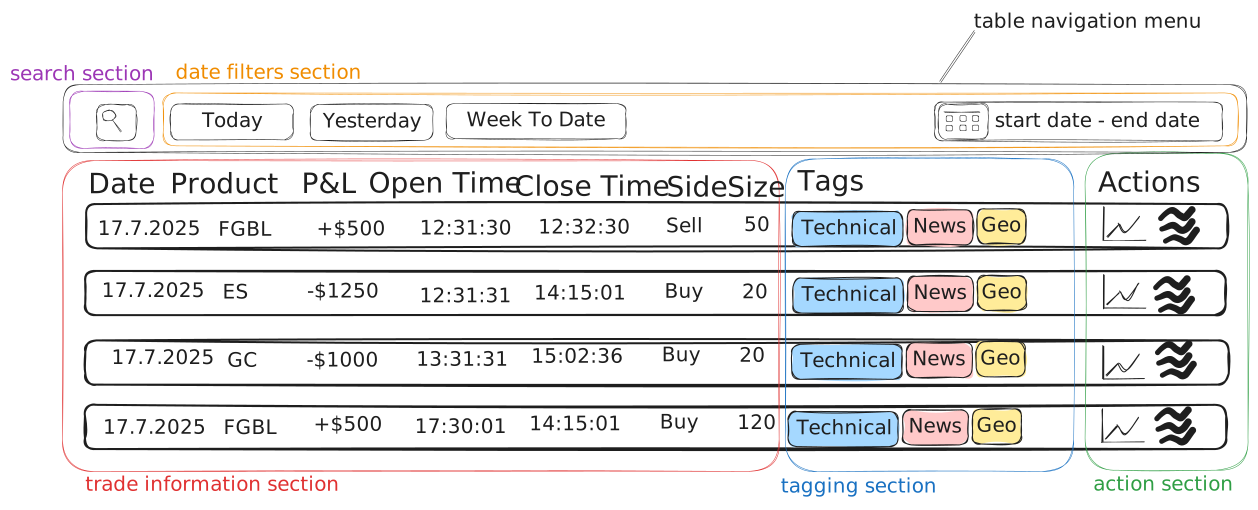
Filtering of trades will be supported by date filters, see orange section "date filters section" in the image.
Search
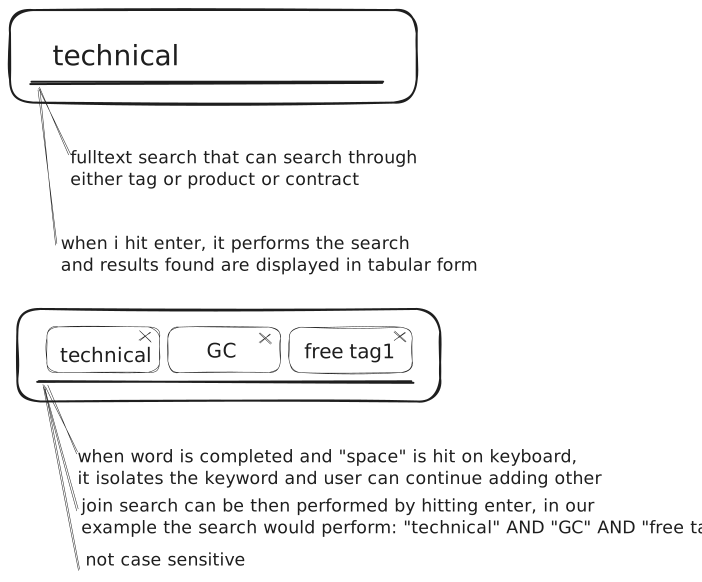
When user clicks into search box, search field should expand so user has more room to type.
Functionalities
Summary
- Location of widget in Personal Analytics (x)
- Tabular Trade Display (x)
- Table Column Ordering (x)
- Actions (x)
- Chart (x)
- Description (x)
- Saving And Removing Of Tags (x)
- Tag Colors (x)
- Date Filters (x)
- Search (x)
- Scrolling (x)
- Pagination (x)
- Tag Names (x)
- Bulk Tagging (x)
- Table Navigation Menu (x)
- Smart Row Highlighting (x)
- Hover over data (x)
- Keyboard shortcuts (x)
- Date picker (x)
- Error and Warning notifications (x)
- Currency Conventions (x)
Detail
Location
This agenda should be located in Persona Analytics. Between the charts Performance Over Time, Profit & Loss and Calendar Events Full width (like Calendar Events)
Tabular Trade Display
Trades are displayed in rows
Table Column Ordering
Each column has ascending and descending ordering capability.
Columns To Display
- Date
- Product
- P&L
- Open Time
- Close Time
- Side
- Size
Actions
Each row consists of the actions:
- Description - ability to add free description to a trade. This description is not attached to a tag, but trade itself
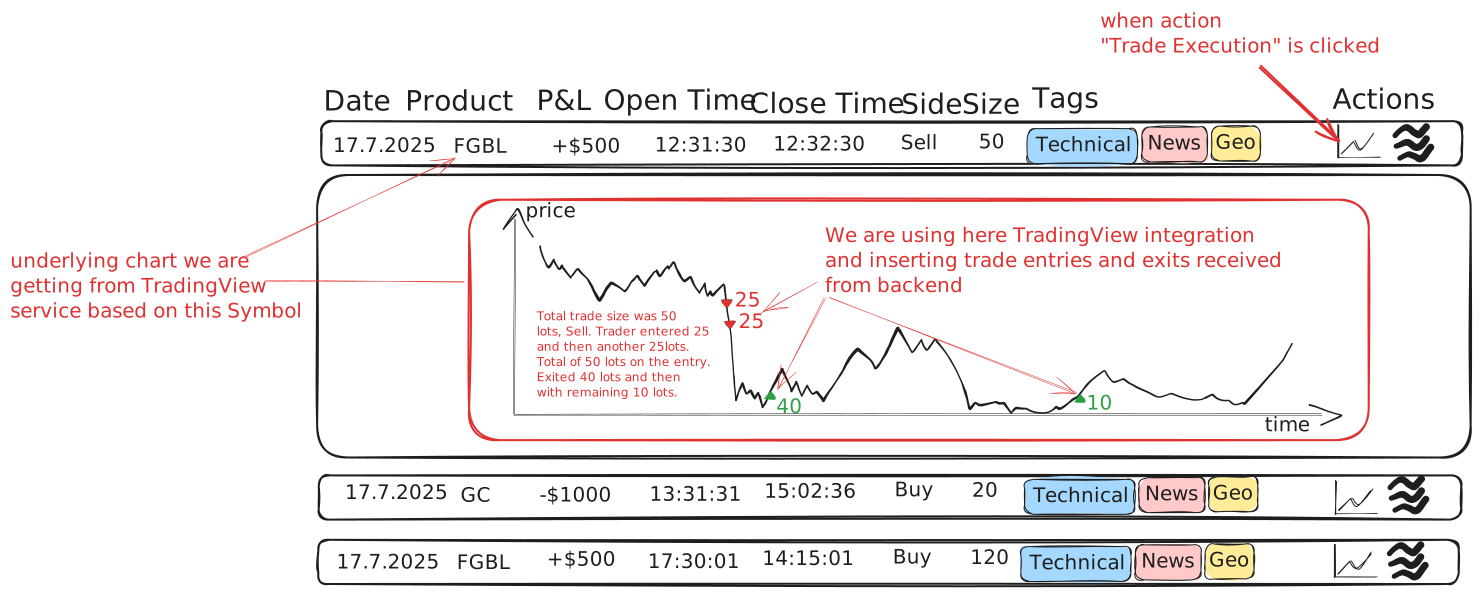
- Chart - ability to see chart in which is displayed all the entries and exits of the trade
Description
When Description Action icon is clicked on, there are two options (or more) how to display it.
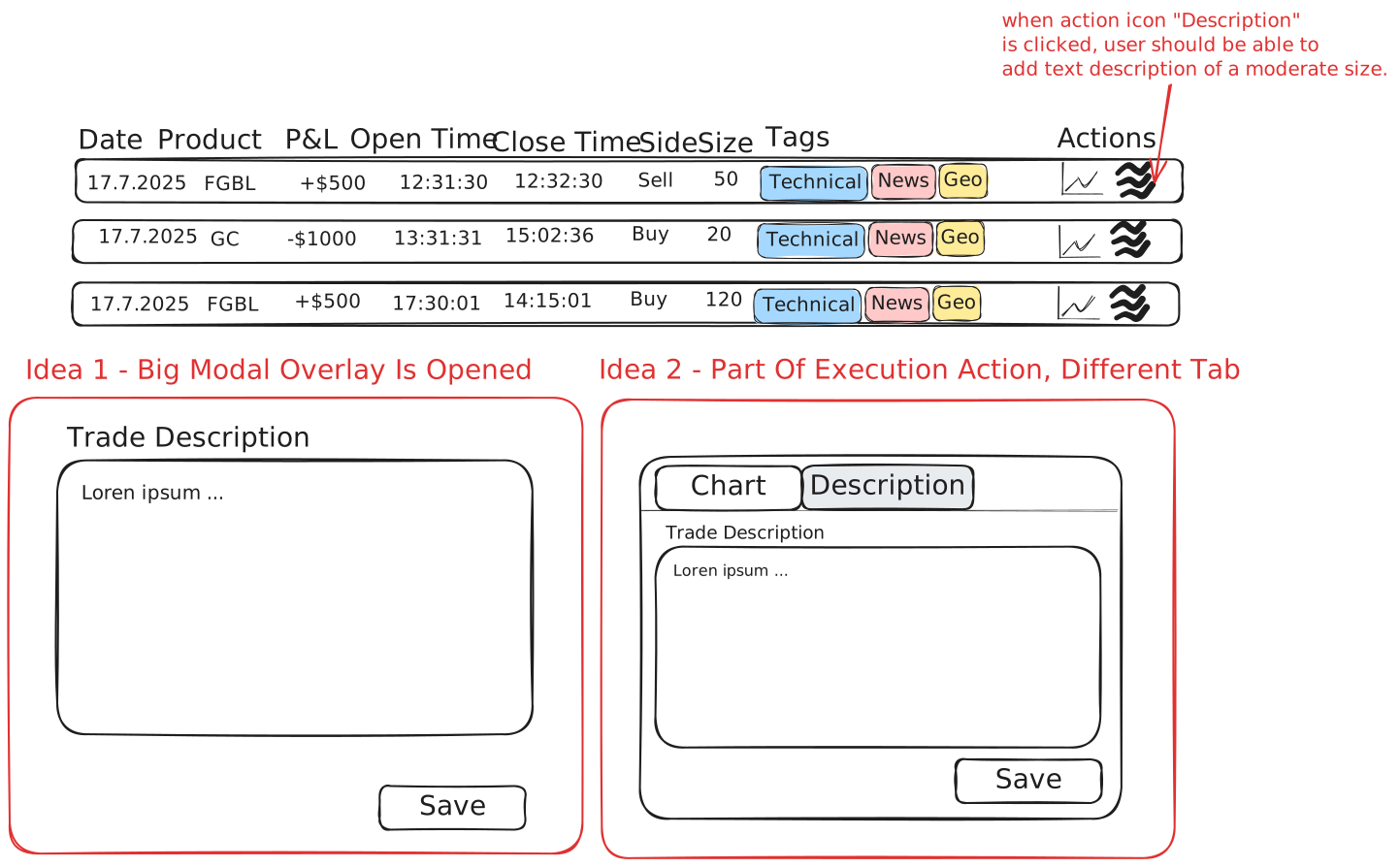
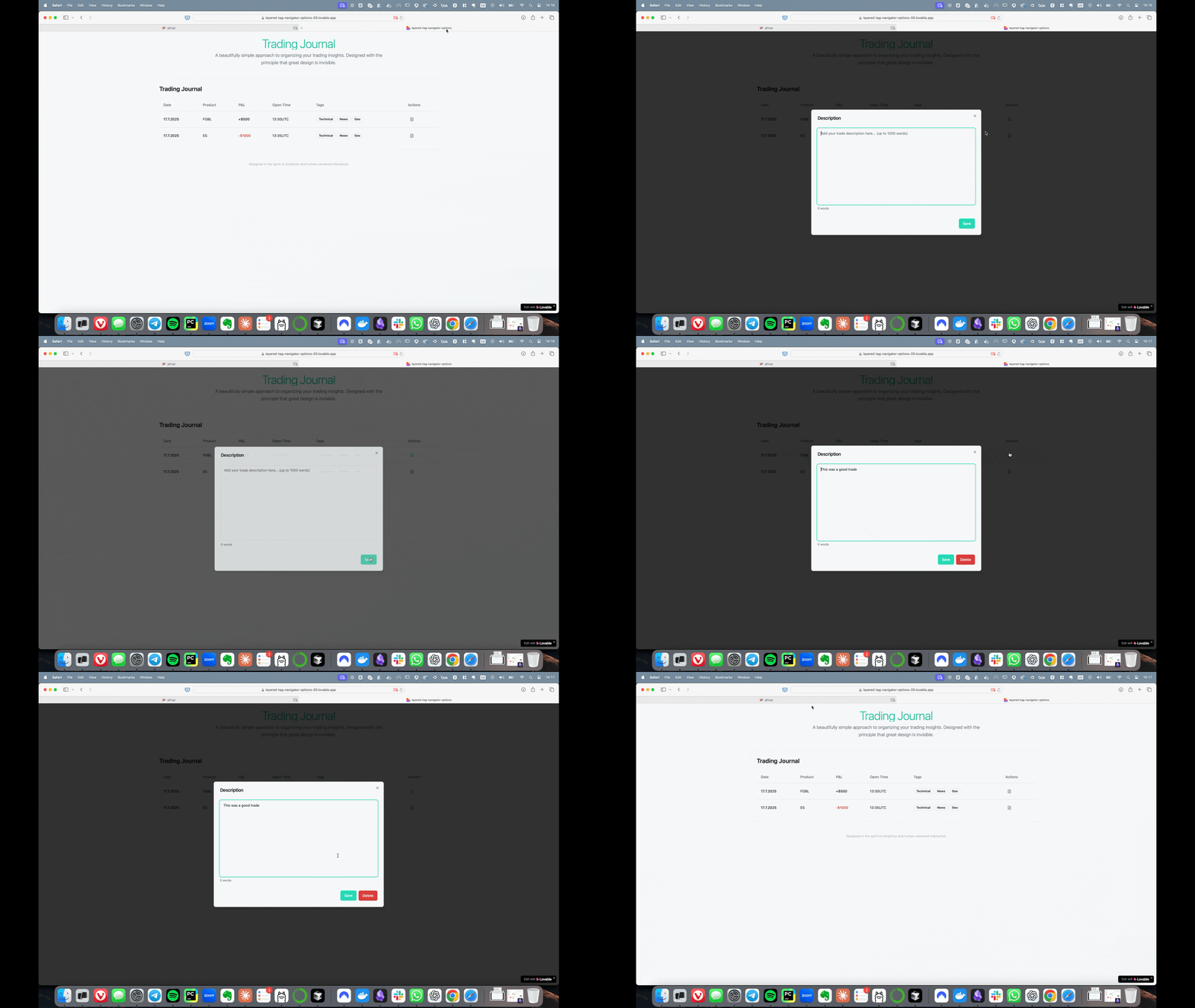
Description has the ability to:
- Save - save only available after at least one character was typed
- Delete - delete button only appears when the description was saved
Description Demo
Chart
Chart execution area will display chart integrated from TradingView using, TradingView libraries When icon for Chart Execution is clicked, the area with a chart rolls out (see Entries And Exits)
Entries And Exits
Each trade will receive object from backend with all entries and exits for that particular trade. If trade has more than one entry and one exit, those entries and exits will be displayed on the chart (see image below). If a trade consists of one entry and one exit, that will be displayed on the chart as well.
Exception
If for some reason TradingView is not returning a chart, there should be "Something went wrong." message following the design principles of skyll.
Saving And Removing Of Tags
- Saving level dependent tags should be done by selecting a tag, NO need to add button "Save".
- Removing of tags should be done via some visible, clickable x type of a button that is inside the tag itself.
Tag Colors
Each level dependent tag has defined fixed color.
Free tag has also fixed color.
Please design most suitable color map given the tag names. If you feel the tags should not have any color not to disturb user in the table view, please let us know.
Date Filters
There will be these filters:
- Today - filters out only trades with todays date
- Yesterday - filters out only yesterday trades
- Week To Date - filters out trades that started on Sunday until todays date
There will be "Start date - End date" calendar date picker like we are already using with selected dates, including the ability to pick time, not just date. So for today it will look like this:
- Start date: 10.9.2025, 00:00:00 (UTC)
- End date: 10.9.2025, :23:59:00 (UTC)
Please follow this exact format.
Custom date selection User can select start and end date directly in the date picker. He can pick start of the year until today for example.
The selection of days should follow same visual logic like we already have for date pickers
Search
- search single keyword
- ability to search multiple keywords
- search is performed by hitting ENTER or clicking on a lens icon at the end of the search box
- when two keywords are written, AND operation is performed. Example: I type GC fear. I am looking for "GC" keyword AND "fear" keyword
- search box expands when clicked into, in a minimal state looks like a small lens
- keywords are NOT case sensitive
Scrolling
When inside the table, internal scrollbar within table should be introduced if there is more than 10 trades displayed.
Default is 10 trades for display.
User can have the ability to choose selection of displaying more 25 or 50 trades to display at once. This should also adjust pagination.
This option is not remembered after logout.
This option should be presented in the bottom right of the trades table.
If more rows is added, the top row displaying the column names, is always visible on top. Like in Google Sheets when you use Freeze row option.
Pagination
Backend should return the ability to display trades by:
- 10
- 25
- 50
Tag Names
1st Level
- Tech
- Data
- Flow
- CBank
- News
2nd Level
If one of the below categories is selected, these options are displayed
Tech
- Candlesticks
- Profile
- DOM
- Footprint
- Other
Data
- Unemployment
- Inflation
- Growth
- Sentiment
- Inventory
- Earnings
- Other
Flow
- MOC
- OPEX
- Auctions
- Opens
- Other
CBank
- Decision
- Presser
- Speakers
- Sources
- Opinion
- Other
News
- DeltaOne
- Bloomberg
- Xenith
- X
- Telegram
- Truth
- Other
Each category consists of Other section, that leads to 3rd level free tag
Bulk Tagging
User must be able to select multiple trades from the list and bulk tag it at once.
Bulk tagging should follow same tagging logic (levels, free tags, fix tags) principles.
Bulk tagging should provide: "summary" information after tagging. After user selects multiple trades and starts tagging, there should be information about how many trades will be modified.
User should have flexibility to bulk untag the trades as well.
Table Navigation Menu
Table navigation menu should consist of:
- Predefined Date Filters such as Today, Yesterday and Week To Date
- Search
- Date Picker (linked to Predefined Date Filters options)
Smart Row Highlighting
Table should have the ability to enable/disable (with one click) smart highlighting directly from the table of trades through ordering of columns, specifically in this case column P&L. What is smart highlighting?
How Does It Work?
Example BEFORE enabling smart highlighting:
| Date | Product | P&L |
|---|---|---|
| 19.7.2025 | FGBL | $500 |
| 18.7.2025 | ES | -$1250 |
| 17.7.2025 | GC | -$330 |
| 17.7.2025 | ES | $50 |
| 18.7.2025 | CL | $5000 |
| 19.7.2025 | ES | -$45 |
Example AFTER enabling smart highlighting:
| Date | Product | P&L |
|---|---|---|
| 18.7.2025 | CL | $5000 |
| 19.7.2025 | FGBL | $500 |
| 17.7.2025 | ES | $50 |
| 19.7.2025 | ES | -$45 |
| 17.7.2025 | GC | -$330 |
| 18.7.2025 | ES | -$1250 |
As you can see, there are two distinct things that happened:
- table was reordered from highest number to the lowest by P&L
- biggest winners and biggest losers must stand out
- some sort of gradient on the number should be applied (ideally color gradient)
- This disabled/enabled feature should be remembered with every user after logout.
User must have the ability to switch this feature off.
Hover over data
Hover over:
- "Open Time" and "Close Time" column displays Timezone (in our case UTC)
- Action icons displays their names, for example hover over a description button would display "Describe your trade" text, or hover over Chart button would read "Display your trade in chart"
- Product name (such as FGBL, or ES) displays full contract name received from backend
- P&L column name hover should display: "Gross P&L (USD)"
- Tag column can say information: "Use key / followed by left or right arrow to select different tags"
Keyboard shortcuts
Step 1:
- 1) User presses key (forward slash): /
- 2) Cursor jumps to the first fixed 1st level tag AND becomes visibly highlighted.
Step 2:
- Arrow keys ←/→ move across tags
Step 3:
- Hitting enter means selecting the first level tag AND expanding the second level
- No shortcuts are needed at the second and third level
Date Picker
Has always Start And End date received from backend based on the user action
Selection of dates is at follows:
- If the Date Picker source is predefined by Filter, in our case, user clicks on button "Yesterday". Date picker selects yesterdays date with the timezone of a trader starting at 00:00:00 and neding at 23:59:59
- If the date picker is defined by the user, user must have the ability to click into a date picker and selects start and also an end to create a custom range
Only days are allowed to select, no time (hour or minute) selection is needed unless it comes out of the box.
Follows the visual principle of showing which dates have been selected we are currently using.
Error and Warning notifications
There should be one distinct location where we communicate error and warning messages.
Warnings:
- Backend is not responding in saving or loading trades information, description information or tags information
- TradingView server is not responding
- Description
- Description cannot be saved. Please type at least one character.
- Failed to save description. Try again later.
- Failed to delete description. Please refresh and try again.
- Unsaved changes. Do you want to leave without saving?
- Search
- Search failed. Please check your connection.
- Invalid search input.
- No results found for your search.
- No trades found for selected date range.
- Invalid date range. Start date must be before end date.
- Unable to load trades. Please refresh the page.
- Connection lost. Please check your internet and try again.
- Large number of trades loaded, performance may be affected. (pagination warning)
- Changes saved, but may take a few moments to update. (when large amount of trades for bulk save have been selected)
Currency Conventions
P&L column must always capture values in this format:
$100
$1,000
$10,000
$100,000
$1,000,000
$10,000,000
or (for mobile or other charts)
$1K
$10K
$100K
$1M
$1.5M
User Roles & Permissions
Tags can be created my account owners only.
When Administrator access personal analytics and selects a trader, he must see this tagging manager as if trader is looking at it (Individual Coach View is applied)
Exceptions
- Export into CSV is not allowed
- Fixed tags are only managed in the backend database
- Bulk edits have no rollback option, changes in the tags are not audited
Pitfalls (What Not To Forget)
- unlimited amount of free tags can create an overload on UI. UI must be able to handle through some grid logic how adding many tags is stacking tags next to each other without overflowing from screen
- most be optimised for mobile as well
TODO
- product mapping between TradingView and Skyll, served from backend